

CT-16K500UV100CoF Camera & PCIe3004 CoaXPress Over Fiber Frame Grabber
CT-16K500UV100CoF Camera & PCIe3004 CoaXPress Over Fiber Frame Grabber
The CT-16K500UV100CoF is a high-performance scientific-grade camera based on a back-illuminated / UV-enhanced TDI line-scan sensor. It features 16384 (16K) pixel line resolution, up to 500 kHz line rate, P1 up to 256 / P2 up to 32 stages of Time Delay Integration (TDI), dual-array HDR, and TEC cooling. It is widely used in high-speed, high-precision online inspection applications such as wafer/semiconductor inspection, flat panel display inspection, PCB inspection, UV fluorescence, and spectral analysis.
When using this camera for measurement and control, real-time image acquisition and high-speed, low-latency image processing are often required. The camera adopts a CoaXPress-over-Fiber (CoF) optical interface with a single-link bandwidth of 100 Gbps, offering excellent EMC performance and virtually unlimited transmission distance, fully capable of handling the 16K@500kHz high-speed data stream. The camera complies with the GenICam/GenApi standard and supports plug-and-play full-function adaptation via a feature tree client.

Fig. 1: CT-16K500UV100CoF Camera and 3004 CoF Frame Grabber
Camera Overview
1. Key Specifications
| Parameter | Specification |
| Sensor Type | TDI Line-Scan CMOS (Back-Illuminated / UV-Enhanced) |
| Effective Pixels | 16384 (16K) Line Array |
| Pixel Size | 5 μm × 5 μm (reference to similar sensors) |
| TDI Stages | P1: 32/64/128/192/224/252/256; P2: 2/4/8/16/24/28/30/32 |
| Max Line Rate | 500 kHz |
| Pixel Bit Depth | Mono12 |
| Scan Direction | Forward / Backward (Bidirectional TDI, independently calibrated) |
| Dynamic Range | Dual-array (P1+P2) HDR supported |
| Data Interface | CoaXPress-over-Fiber (100 Gbps) |
| Cooling Method | TEC semiconductor cooling (target 20~40 ℃ adjustable) + fan |
| Image Correction | FPN / PRNU / DSNU / DPC / OBC / LE / LUT |
| Operating Mode | TDI_Mode / Area_Mode; LineScan / AreaScan |
2. Core Features
- High-Sensitivity Low-Light Imaging: Up to 256-stage TDI time delay integration combined with TEC cooling for exceptional SNR.
- UV Enhancement: Back-illuminated sensor delivers high quantum efficiency in the UV band, revealing scratches, stains, and non-uniformities invisible under visible light.
- High Dynamic Range: Dual-array data fusion of P1 (high sensitivity) + P2 (low sensitivity) extends the dynamic range.
- Metrology-Grade Image Quality: Multi-level correction including FPN/PRNU/DSNU/DPC/OBC/LE/LUT, with independent forward/reverse calibration.
- Precision Synchronous Scanning: Rich trigger sources, frequency multiplication/division, external direction and gating control for synchronization with motion/encoder systems.
3. Operating Modes
TDI_Mode: Time Delay Integration mode for low-light high-speed scanning imaging (default).
Area_Mode: Standard line-scan mode.
DeviceScanType supports LineScan / AreaScan switching; TDIScanDirection supports Forward / Backward bidirectional scanning.
4. Software & Interface
The camera supports the GenICam standard interface. The accompanying XML description file can be recognized by mainstream machine vision software and feature tree clients. The GenICam interface covers full-feature categories including device control, image format, acquisition control, TDI control, temperature control, status monitoring, LUT control, flat-field correction, digital I/O, user parameter sets, factory calibration, and transport layer.
5. Typical Applications
Wafer/semiconductor inspection, flat panel display (FPD) inspection, PCB inspection, battery electrode inspection, UV fluorescence/spectral analysis, high-performance document/film scanning, microscopy, and metrology.
Test Preparation & Image Acquisition
After powering on the camera and establishing a proper fiber link, identify the camera in the feature tree client (DeviceModelName should be readable). First, acquire a set of baseline images using the default baseline configuration. All subsequent comparisons of "brightness/uniformity/direction" should reference this baseline. Change only one variable at a time and capture images for comparison.
Baseline default configuration is shown in the table below:
| Parameter | Default Value |
| DeviceScanType | LineScan |
| Width / Height / OffsetX | 4096 / 32 / 0 |
| PixelFormat | Mono12 |
| CameraMode | TDI_Mode |
| Binning | Binning_4x2 |
| AnalogGain / DigitalGain / BlackLevel | x1 / 1 / 0 |
| AcquisitionLineRate / FrameRate | 500 kHz / 10 Hz |
| ExposureTime | 10000 us |
| TriggerMode / Source / Activation | Off (On recommended) / RS422 / RisingEdge |
| TriggerGlitch/Debouncer/Delay/Timeout | 25ns / 1000ns / 0 / 100us |
| TriggerLatch / RescalerSamples | On / Samples_0 |
| TDIScanDirection / ScanDirectionSource | Forward / Internal |
| InvalidLinesMaskEnable / MaskInvalidLines | On / 32 |
Open the acquisition software, select and connect to the camera, then click the acquisition button to capture images. The interface is shown below.
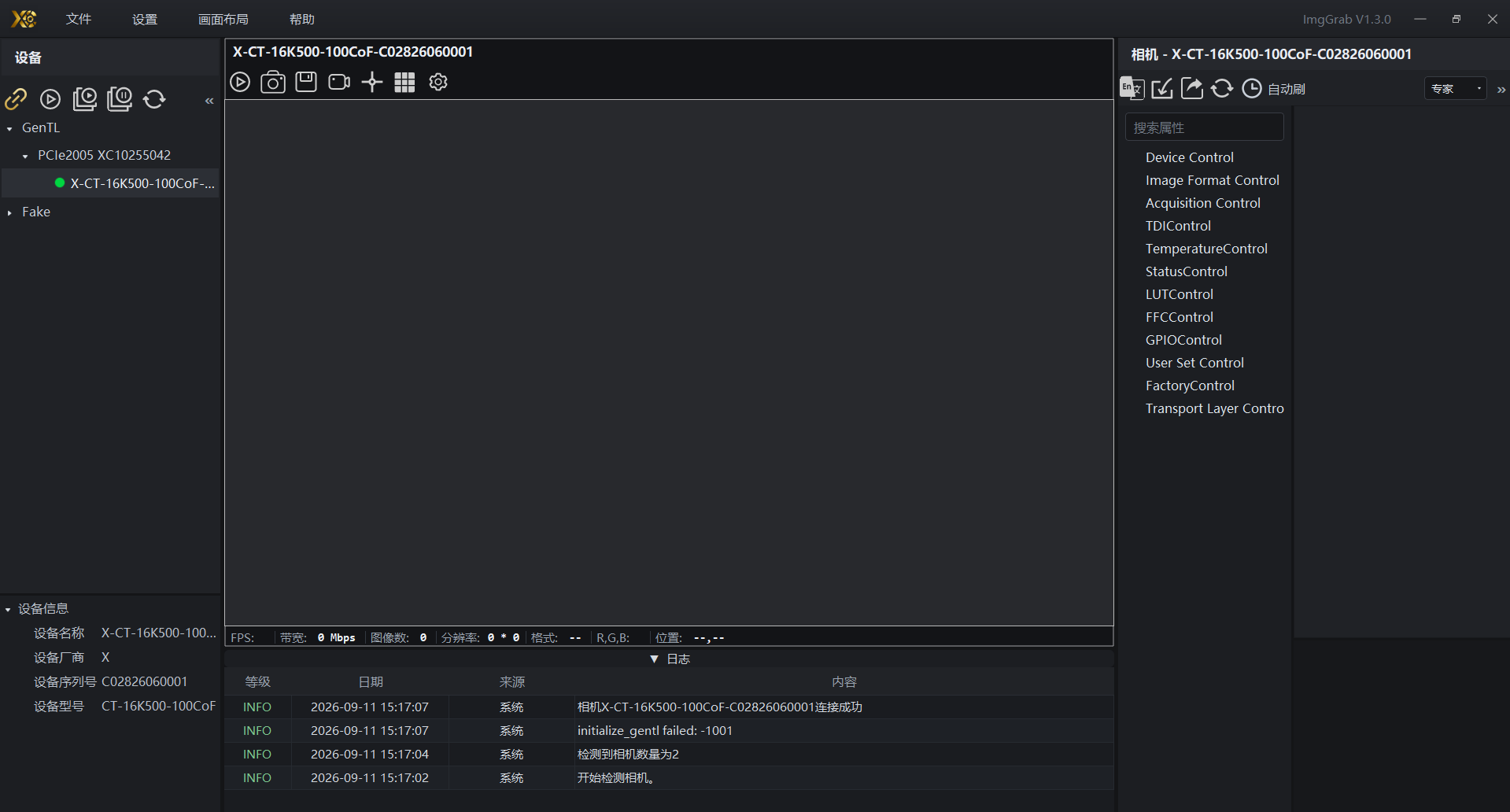
Fig. 2: Acquisition Software Connection & Capture Interface
Default image acquired with baseline configuration is shown below.

Fig. 3: Image Acquired with Baseline Default Configuration
Camera Function Tests
Image Format & ROI (ImageFormatControl)
Image acquisition with default width and height (Width=4096, Height=32) is shown below.

Fig. 4: Default Width/Height Acquisition
Adjusting width/height to other values (e.g., Width=4096, Height=32/64) and acquiring successfully — image dimensions match the settings.

Fig. 5: Acquisition After Modifying Width/Height

Fig. 6: PixelFormat Set to Mono12
Switching CameraMode between TDI_Mode and Area_Mode: TDI images are noticeably brighter (multi-stage integration), while Area mode produces single-stage line-scan images.


Fig. 7: CameraMode Set to Area_Mode
Setting BlackLevel to 0/100/500: overall image pedestal rises, dark area floor shifts upward.


Fig. 8: Acquisition After BlackLevel Elevation
Setting ReverseX to True/False: two images are left-right mirrored.


Fig. 9: ReverseX Mirror Comparison
Setting TestPattern to various Ramp modes (no lens required): corresponding horizontal/vertical/diagonal grayscale gradient stripes appear, used for link and bit-depth self-test.


Fig. 10: TestPattern Test Images
Setting AlignGridEnable to BothOn and adjusting spacing/color/offset: corresponding grid lines are overlaid on the image for optical alignment.


Fig. 11: AlignGrid Overlay
Acquisition & Trigger (AcquisitionControl)
Setting AcquisitionLineRate to 100k/300k/500k; AcquisitionFrameRate cannot be set: output speed matches Status line rate/frame rate readings.


Fig. 12: Line Rate / Frame Rate Setting Acquisition
ExposureTime cannot be set; default value is 10000us.

Fig. 13: Exposure Time Comparison
1. Software Trigger
Set TriggerSource to SoftTrigger, set SoftTriggerNum=100, and execute SoftTrigger.
Fig. 14: Software Trigger Acquisition
2. External Trigger (RS422)
Set TriggerMode to On, TriggerSource to RS422: no trigger means no image update; image is output only when triggered. Switching TriggerActivation between rising and falling edge responds on the corresponding edge.

Fig. 15: External Trigger Acquisition
TDI Control (TDIControl)
TDIStage default is 16 and cannot be changed.

Fig. 16: TDI Stage Comparison
Setting TDIScanDirection to Forward/Backward: vertical content order is reversed between the two images.


Fig. 17: Scan Direction Forward/Reverse Comparison
Setting ScanDirectionSource to External and changing external level, switching ScanDirectionActivation between high/low active: direction follows external signal and polarity. Injecting glitches with ExternalScanGlitchFilter prevents false direction flipping.


Fig. 18: External Direction Control
Temperature & Cooling (TemperatureControl)
Set ControllerSelector to Auto, TecTargetTemperature to 20/30/40 ℃: SensorAnalogTemperature converges to the target value, as shown in the readings below.

Fig. 19: TEC Target Temperature & Real-Time Temperature Readings
Status Monitoring (StatusControl)
During acquisition, read LineTriggerRate/ValidTriggerRate/SensorTriggerRate/SensorTxLineRate/CXPTxLineRate/CXPTxFrameRate and each *Sum accumulator: values match the set line rate/frame rate and increment continuously, as shown below.

Fig. 20: Rate Levels & Cumulative Count Readings

